
VCF to QR Code: Turn a Contact File Into a Scannable Code
Last updated Sep 11, 2026
On this page
- What is actually inside a .vcf file
- First, get your contact as a .vcf file
- Method 1: rebuild the contact in a vCard QR generator
- Method 2: paste the vCard text into a plain text QR code
- Method 3: host the .vcf file and link to it
- Why a .vcf with a photo will not fit in a QR code
- vCard 2.1, 3.0, or 4.0: which version to put in a QR code
- Test the code on an iPhone and an Android phone
- Troubleshooting a VCF QR code that will not scan
- Which method should you use?
- Sources
- Common questions about turning a VCF file into a QR code
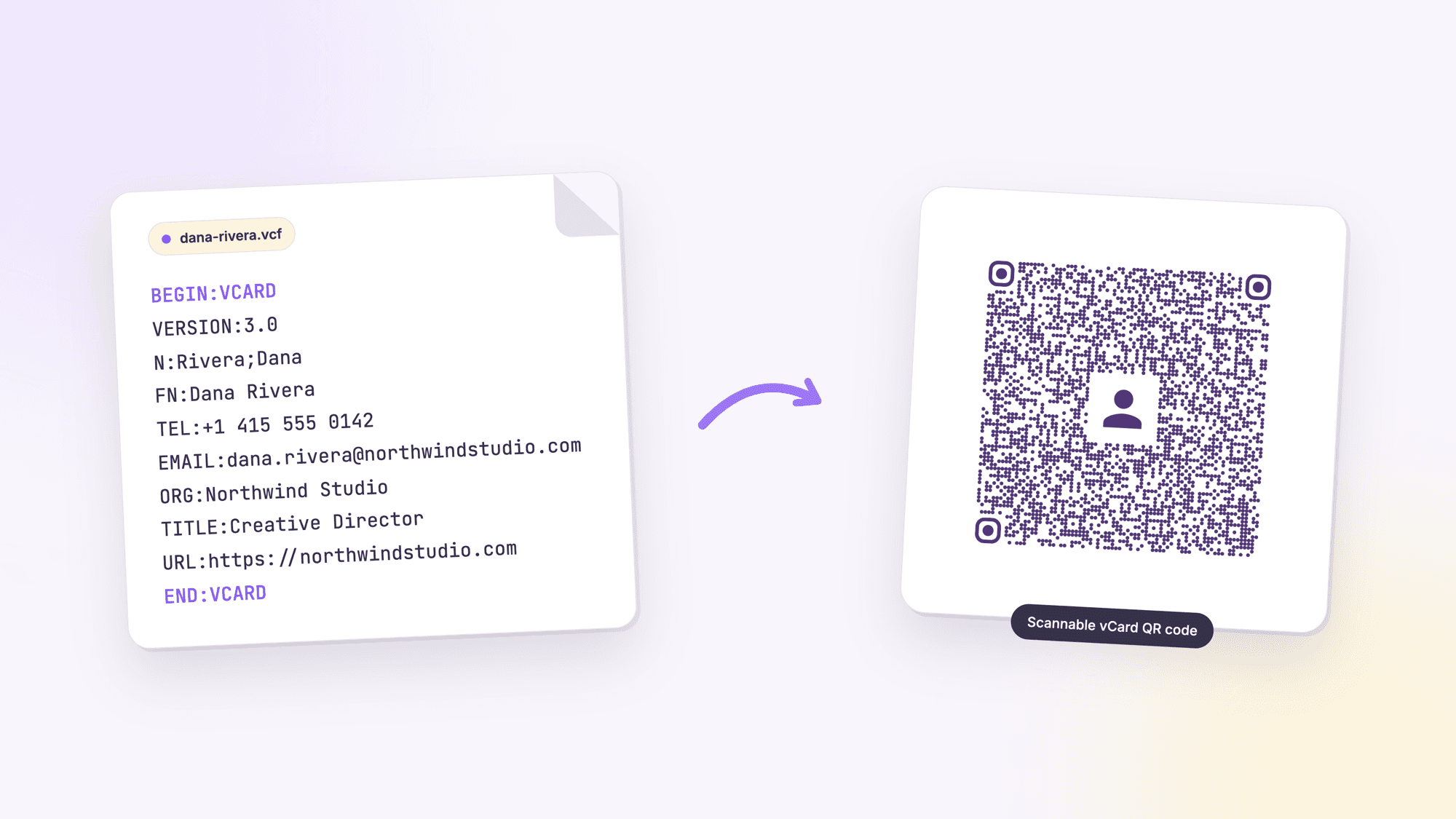
A .vcf file is a contact card saved as text, and a QR code is a way of carrying text on paper or a screen. Turning one into the other sounds like it should be a single button, and for a small, clean contact file it nearly is. The catch is that most .vcf files exported from a phone carry a photo and a pile of extra lines that push them far past what a QR code can hold. This guide shows three ways to get from a VCF file to a QR code that scans as a contact, how to clean the file when it is too big, and how to test the result on an iPhone and an Android phone.
If you do not have a .vcf file yet and just want a contact code, start with our guide on how to make a vCard QR code, which walks through the fields from scratch. If the code is headed for a business card, the guide to QR codes on business cards covers size and placement.
What is actually inside a .vcf file
Open a .vcf file in any text editor and you will see something like this. The example below is what an iPhone produces when you share a contact, with the photo line cut short because the real one runs for thousands of characters:
BEGIN:VCARD
VERSION:3.0
PRODID:-//Apple Inc.//iPhone OS 17.5//EN
N:Rivera;Dana;;;
FN:Dana Rivera
ORG:Northwind Studio;
TITLE:Creative Director
EMAIL;type=INTERNET;type=WORK;type=pref:dana.rivera@northwindstudio.com
TEL;type=CELL;type=VOICE;type=pref:+1 (415) 555-0142
item1.URL;type=pref:https://northwindstudio.com
item1.X-ABLabel:_$!<HomePage>!$_
PHOTO;ENCODING=b;TYPE=JPEG:/9j/4AAQSkZJRgABAQAAAQABAAD/2wBDAAYEBQYFBAYGBQYHBwYI
 CgwUDQwLCwwZEhMPFB0aHx4dGhwcICQuJyAiLCMcHCg3KSwwMTQ0NB8nOT04MjwuMzQy...
REV:2026-09-11T14:02:11Z
END:VCARD
Every line is a property. N is the structured name, FN is the display name, TEL and EMAIL carry the contact points, and ORG, TITLE, and URL are what they look like. The format is defined by the IETF: version 3.0, which is what phones export and what most QR readers parse best, lives in RFC 2426, and version 4.0 in RFC 6350. The lines you care about are short. The lines that cause trouble are PRODID, REV, the X- lines that are private to Apple or Google, and above all PHOTO, which stores the picture as a block of base64 text. A single thumbnail turns a 200 byte contact into a file with tens of thousands of characters.
First, get your contact as a .vcf file
iPhone. Open Contacts, open your own card, scroll down and tap Share Contact. Save it to Files, AirDrop it to a Mac, or email it to yourself. The attachment is a .vcf file in vCard 3.0 format.
Android. Open the Google Contacts app, open the contact, tap the three dot menu, and choose Share. Android offers the contact as a .vcf attachment you can email or save to Drive.
Google Contacts on the web. Select the contact, open the More menu, and choose Export. Google's help page on exporting contacts explains that you can download contacts as a CSV or a vCard file. Pick vCard. The download is a .vcf.
Outlook. Open the contact, then use File, Save As, and pick vCard Files (.vcf) as the type. Microsoft's support article on sending and saving contacts as vCards covers the same steps for attaching a card to an email.
Mac. In the Contacts app, select the card, then choose File, Export, Export vCard. Apple's Contacts User Guide describes the export, and you can select several cards to export them into one file, which matters later because a QR code should carry only one.
Method 1: rebuild the contact in a vCard QR generator
This is the method to use for anything you will print, and it is faster than it sounds because you are copying six or seven short fields, not typing from memory. Open the .vcf in a text editor so you can see exactly what is in it, then open the vCard QR code generator and fill in first name, last name, phone, email, company, title, and website from the file. Leave out anything you would not put on a business card. Download the SVG for print or the PNG for screens.
The reason this beats pasting the whole file is control. You decide what goes in, the generator writes a clean vCard 3.0 with nothing but the fields you chose, and the result is the smallest possible code, which means it prints smaller and scans faster. Everything about how those fields behave on the other person's phone is covered in the vCard QR code guide.
Method 2: paste the vCard text into a plain text QR code
A QR code does not have a contact mode. What phones actually do is decode the text inside the code and look at how it starts. Text that begins with BEGIN:VCARD is treated as a contact, text that begins with https:// is treated as a link, and so on. That means you can paste the contents of a .vcf file into a plain text QR code generator and the phone will still offer to save the contact, as long as the text is a valid vCard and small enough to encode.
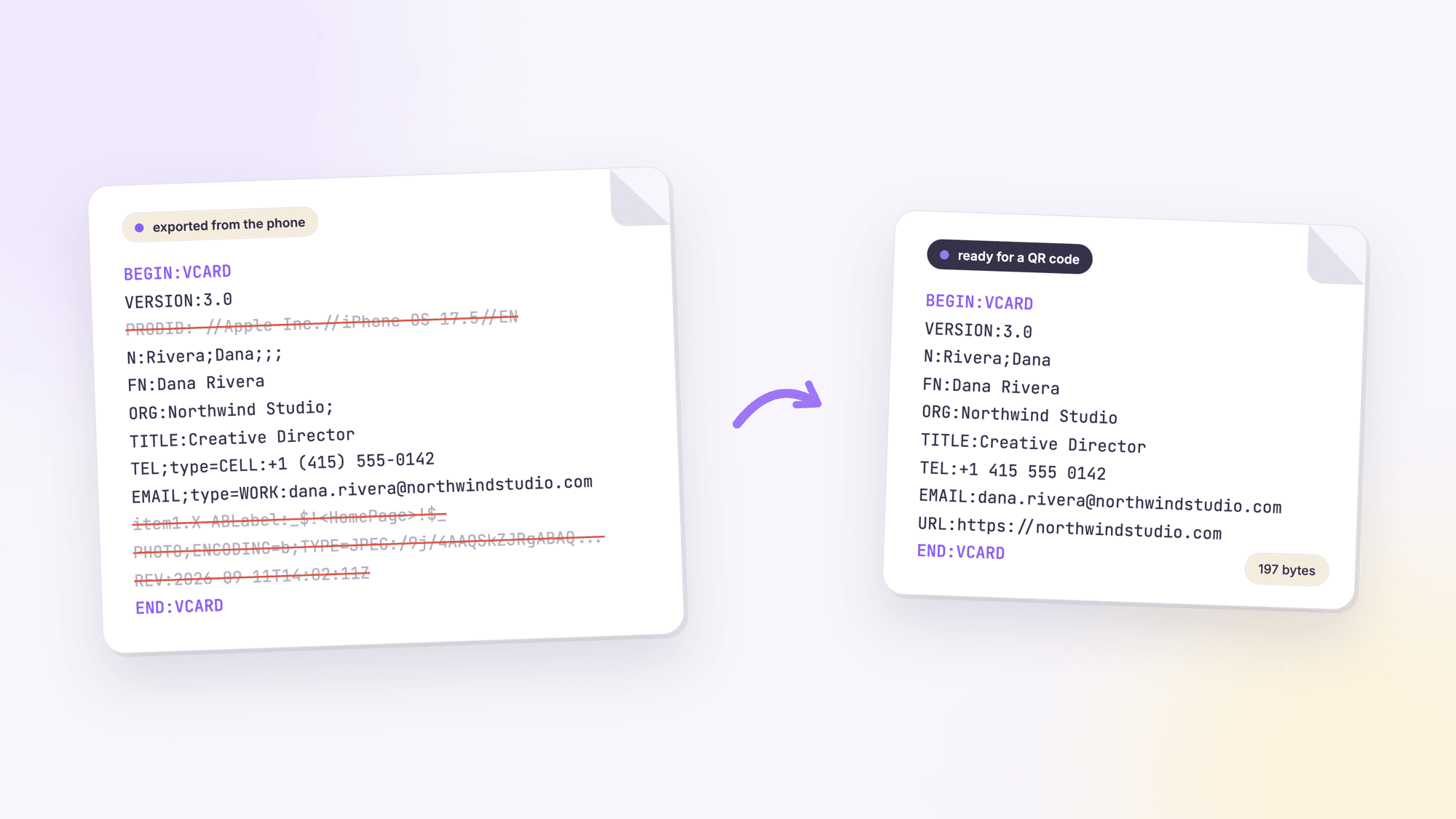
Use this method when the file has something the form does not, such as a second phone number with a label, or when you want the exact record you already maintain. Before you paste, clean the file:
1. Keep one contact. If the file contains more than one BEGIN:VCARD block, delete all but the one you want. Phones read the first and ignore the rest, or refuse the whole thing.
2. Delete the PHOTO block. Remove the PHOTO line and every indented line that follows it until the next property. This is the single change that makes most files fit.
3. Delete the housekeeping lines. PRODID, REV, UID, and any line starting with X- are safe to remove. They tell the exporting app about itself and carry nothing a phone needs to save a contact.
4. Keep BEGIN, VERSION, N, FN, and END exactly as they are. A vCard without a VERSION line or without both N and FN is the most common reason a scanner shows raw text instead of a contact prompt.
5. Watch the folded lines. The vCard specification wraps long lines at 75 characters by starting the continuation with a single space. Editors sometimes strip that space or add a blank line. If you shorten a line, join it back into one line rather than leaving a break in the middle of an address.
Copy the cleaned text, paste it into the text QR generator, and scan the preview. If the phone offers to add a contact, you are done. If it shows the text on screen, one of the five rules above was missed.
Method 3: host the .vcf file and link to it
The third route does not put the contact in the code at all. You upload the .vcf file to your website, then make a URL QR code that points to it. When someone scans, their phone downloads the file and offers to add the contact. The QR code only ever contains a short link, so the file can be as large as you like, photo included, and you can replace the file on the server whenever your details change without reprinting anything.
The tradeoffs are the same as for any dynamic code. The link has to stay live, the server needs to serve the file with the text/vcard content type that RFC 6350 defines for vCards so phones recognize it, and a scan now depends on a network connection. The person also sees a download step instead of an instant prompt, which is one extra tap and, on some Android phones, a trip through the Downloads folder. If you want the ability to edit after printing, this is how you get it; our guide to static versus dynamic QR codes covers when that is worth the dependency.
Why a .vcf with a photo will not fit in a QR code
The largest QR code, version 40 at the lowest error correction level, holds 2,953 bytes of binary data, and Denso Wave, which invented the format, notes that version 40 is a 177 by 177 grid that no phone will read from a business card. A photo stored in a .vcf is base64 text, and even a small thumbnail runs to tens of thousands of characters, so the file cannot be encoded at any size. Strip the photo and the arithmetic changes completely. The character limit guide shows how each length maps to a code size.
We encoded sample cards with the same open-source QR library our generator uses to see where real contacts land. Name, one phone, and one email is about 105 bytes and produces a version 5 code (37 by 37 modules) at level L or version 10 at level H. Add company, title, and website and the file is near 200 bytes, a version 9 to 15 code. Add a street address and a LinkedIn URL and it passes 300 bytes, which is version 11 to 18. All of those scan, but a version 18 code needs to be printed at least an inch wide to be reliable, and each extra property pushes it up. The habit to build is to keep a printed contact under about 300 bytes and put everything else on a web page.
vCard 2.1, 3.0, or 4.0: which version to put in a QR code
You will see three version numbers in the wild. Version 2.1 is the oldest, uses an encoding called quoted-printable for accented characters, and still turns up in files exported from older Android phones and Windows software. Version 3.0 (RFC 2426, 1998) is what iPhones export, what Google offers as vCard for iOS Contacts, and what our generator writes. Version 4.0 (RFC 6350, 2011) is the current standard and adds things like a KIND property and better handling of multiple languages, but not every scanner app parses every 4.0 feature.
For a QR code, use 3.0. It is the version the most phones read the most consistently, it is compact, and every field you would put on a card is supported. If your file says VERSION:4.0 and scans fine on both your test phones, leave it. If it says VERSION:2.1 and has lines with ENCODING=QUOTED-PRINTABLE in them, rebuild it with Method 1 rather than pasting it.
Test the code on an iPhone and an Android phone
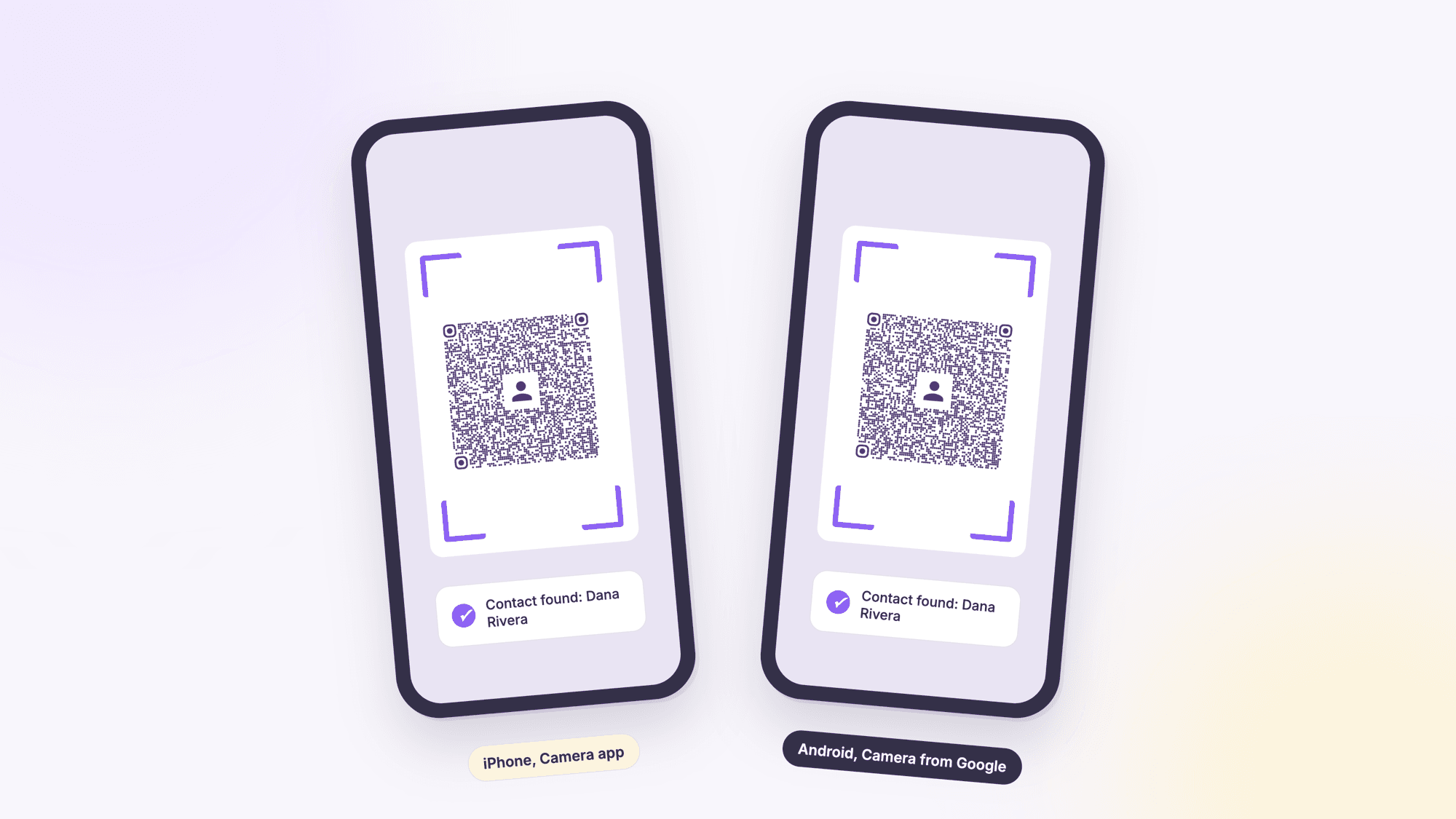
On an iPhone, open the Camera app and point it at the code. Apple's support page on scanning QR codes explains that the camera recognizes the code and shows a banner you tap to open the content; for a contact, that is a Contacts prompt that opens the new card ready to save. Check the first and last name landed in the right fields, tap the number to confirm it dials, and tap the email to confirm it opens a message.
On Android, the Camera from Google app has a QR mode and also scans in the normal photo mode. Google's help page points out that scanning does not work in portrait or video mode, which catches people out when a code refuses to register. Google Lens works too. Either way, the phone offers to add the contact. Open the saved contact afterward, because Android contacts apps map the company and title fields differently and the only way to know is to look.
Test at the real size. A code that scans from a bright monitor can fail printed at three quarters of an inch on a matte card. Print the SVG on plain paper at 100 percent and scan that before ordering anything, and work through the pre-print test if the run is large. If you are making the code on your phone rather than a computer, our guide to making a QR code on your phone covers the mobile workflow. If a print fails, the QR code not scanning guide lists the fixes by symptom.
Troubleshooting a VCF QR code that will not scan
| What you see | Likely cause | Fix |
|---|---|---|
| The phone shows raw text instead of a contact prompt | Missing VERSION, N, or FN line, or a blank line before BEGIN:VCARD | Check the first line is BEGIN:VCARD and the file has VERSION:3.0, N, and FN |
| The generator refuses the text or the code is a dense gray block | The PHOTO block is still in the file | Delete PHOTO and every indented line after it |
| The name saves backwards or all in one field | The N line has the parts in the wrong order | N is last name, then first name, separated by a semicolon |
| The phone number is not tappable | Letters or unusual characters in the TEL value | Use digits, spaces, and a leading +1 only |
| Scans on an iPhone but not on Android, or the reverse | A 4.0 feature or an X- line one platform does not understand | Rebuild with Method 1 so the code contains only standard 3.0 fields |
| Scans from the screen but not from the printed card | Printed too small, low contrast, or no blank margin around the code | Print at least an inch wide, dark on light, with a margin on every side |
Which method should you use?
Rebuild the contact in the vCard generator if the code is going on paper. It is the smallest code, the cleanest data, and the one that will still work in a decade. Paste the cleaned text into a text QR code if you need a field the form does not offer and you are comfortable editing the file by hand. Host the file and link to it if your details change often, you want a photo included, or you need to count scans, and accept that the code now depends on a server. Sales teams handing out cards at trade shows tend to want the hosted version for exactly that reason, and our events QR code page covers the rest of the booth setup; everyone else is usually better served by the static one.
Sources
- IETF RFC 6350: vCard Format Specification (2011)
- IETF RFC 2426: vCard MIME Directory Profile, version 3.0 (1998)
- Google Contacts Help: Export, back up, or restore contacts
- Microsoft Support: Send and save contacts as vCards (.vcf files)
- Apple Contacts User Guide: Export contacts on Mac
- Apple Support: Scan a QR code with your iPhone or iPad
- Google Help: Scan QR codes on Camera from Google
- Denso Wave: Information capacity and versions of the QR Code
Common questions about turning a VCF file into a QR code
Can I convert a .vcf file directly into a QR code?▾
Yes, if the file is small. Open it in a text editor, remove the PHOTO block and housekeeping lines like PRODID and REV, and paste the rest into a plain text QR code generator. Phones recognize text that starts with BEGIN:VCARD as a contact. For printed cards, retyping the fields into a vCard generator gives a smaller, cleaner code.
Why is my VCF QR code so dense and hard to scan?▾
Almost always because the file still contains a photo, which is stored as thousands of characters of base64 text, or because it carries every field the phone had, including addresses and notes. Delete the photo, keep only the fields you would print on a card, and the code shrinks to a normal size.
Can a QR code contain a contact photo?▾
Not in practice. The largest QR code holds 2,953 bytes, and even a tiny thumbnail encoded as text is far bigger than that. If the photo matters, host the .vcf file on your website and link to it with a URL QR code, so the phone downloads the full file.
Which vCard version works best in a QR code?▾
Version 3.0. It is what iPhones export, what Google Contacts offers for iOS, and what most scanner apps parse most consistently. Version 4.0 files usually work but include features some readers ignore, and version 2.1 files often use an encoding that should be rebuilt rather than pasted.
Can one QR code hold several contacts from a .vcf file?▾
Keep it to one. A .vcf file can contain many contacts, but phones generally read the first block in a QR code and ignore or reject the rest, and several contacts would not fit at a printable size anyway. Make a separate code for each person.
Does a VCF QR code need an internet connection to work?▾
Not if the contact is encoded in the code itself, which is the case for the generator method and the pasted text method. Only the hosted file method needs a connection, because the phone has to download the .vcf from your server.
Can I update the contact after the QR code is printed?▾
Only with the hosted file method, where you replace the .vcf on your server and the printed code keeps pointing at the same link. A code that contains the contact data itself is permanent, so check every field before you print.
Copy the fields from your .vcf into the free vCard generator. Clean code, no photo bloat, SVG and PNG download, no signup.
Rebuild your contact as a QR codePublished by
QRCodePrime Team
Guides on making, printing and scanning QR codes
Published by the team behind the free QRCodePrime generator and scanner. The example codes in our illustrations are real codes made with the generator, numbers are either computed by us or quoted from a source we name, and the sources are linked at the end of each article. Found a mistake? Email hello@qrcodeprime.com and we will fix it.