
How to Make a QR Code on Your Phone (No App, No Signup)
Last updated Sep 20, 2026
On this page
- What "no app" actually means
- The actual steps, on iPhone and on Android
- Which file to download on a phone
- What to do with the file once you have it
- Common phone-specific problems and the fix
- The one case where a computer is genuinely easier
- Sharing a code without printing it at all
- Where to find a QR code that is already on your phone
- Where phone-only QR codes actually go wrong
- When you actually need more than a static code
- Sources
- Common questions about making a QR code on your phone
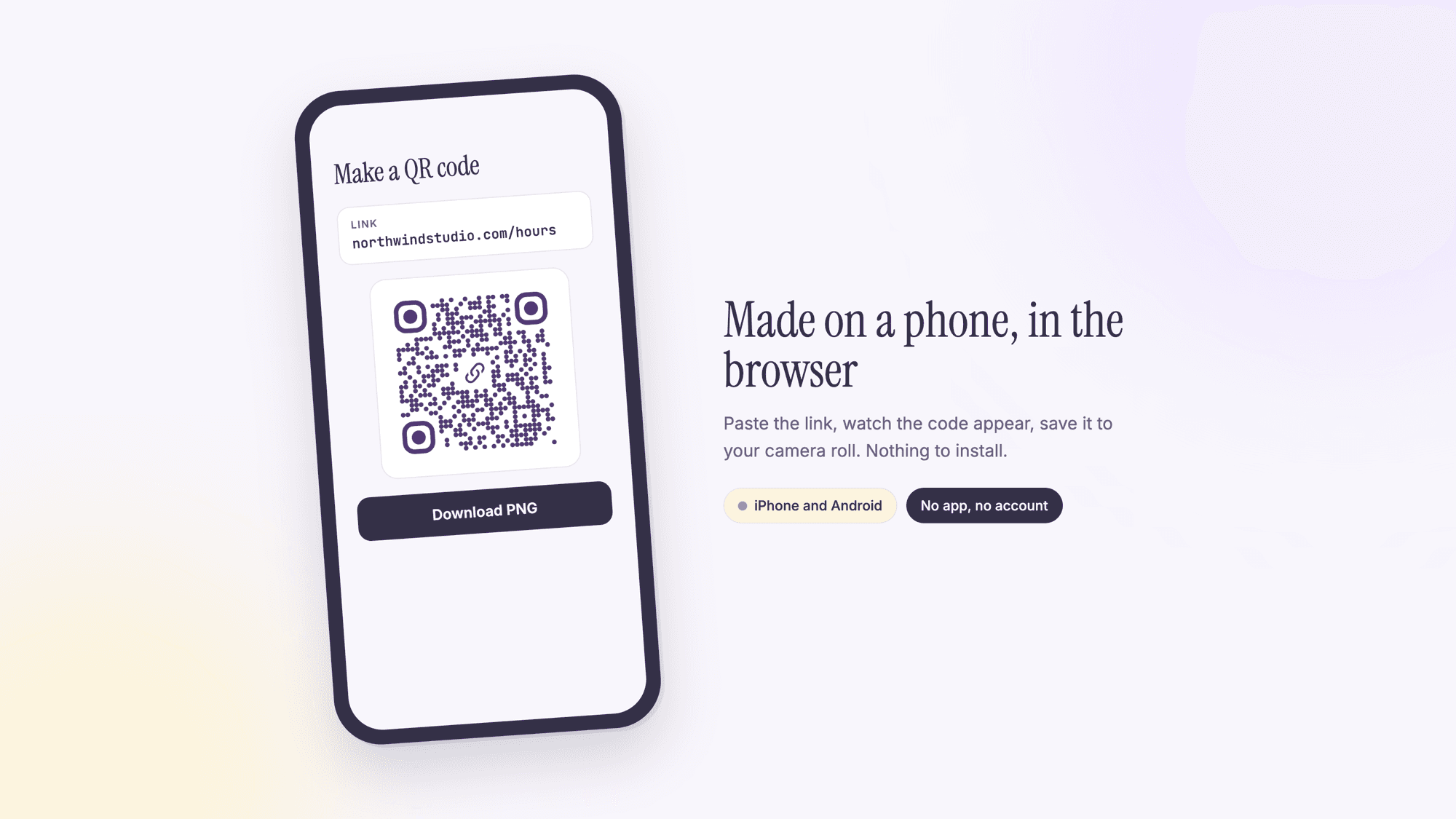
You can make a QR code entirely on your phone, and no app is needed. Open a QR code generator in your phone's browser, type or paste what the code should contain, and download the file. Creating a code is a browser task, so any iPhone or Android phone can do it. Reading one is a camera task your phone already handles on its own.
Every QR code generator works on mobile. The confusion is that most people assume they need a desktop because the first few generators they tried had tiny tap targets, broken color pickers on small screens, or download buttons that silently failed on Safari. That is a bad generator, not a phone limitation.
What "no app" actually means
Two separate things happen when someone uses a QR code, and only one of them ever needs software. Making the code is a browser task. You open a page, type or paste what you want encoded, and download an image. That is it. Scanning the code is a camera task, and every iPhone since iOS 11 (2017) and every Android phone running version 9 or later (2018) reads QR codes natively through the built-in camera app. No barcode scanner app, no third-party software, on either end.
So when someone searches for how to make a QR code on their phone, what they actually want is a generator that renders cleanly in a mobile browser and does not gate the download behind a signup form. That is a smaller ask than it sounds, and most generators fail at exactly the download step.

The actual steps, on iPhone and on Android
This is the same three-tap process regardless of device, because the whole thing happens inside the browser rather than the operating system.
1. Open the generator in your phone's browser. Safari on iPhone, Chrome on Android, either works. Use our free QR code generator and it loads as a normal mobile page, no app store detour.
2. Pick what you are encoding and type it in. A website link, WiFi details, a phone number, a contact card, whatever the sticker or sign needs. The WiFi QR code type is the one people are most surprised exists on mobile, since typing a long WiFi password twice (once to set it up, once to confirm it in the generator) is exactly the kind of task people assume needs a keyboard.
3. Download the PNG or SVG straight to your camera roll. On iPhone, tap and hold the preview image and choose Save to Photos, or use the Download button if the generator has one. On Android, the download button saves directly to your Downloads or Pictures folder. From there you can AirDrop it to a laptop, email it to a print shop, or upload it directly from your phone's gallery to a printing app like Canva or VistaPrint. You never need to touch a computer in this entire flow.
Which file to download on a phone
The download button offers more than one format, and the right one depends on where the code is going next.
| File | Use it for | Avoid it when |
|---|---|---|
| SVG | Anything going to print, at any size | An app or a form will not accept it |
| PNG | Screens, slides, social posts, email signatures | It will be enlarged well past its own size |
| Screenshot | Nothing. Use the download button instead | Always. It is recompressed and softer |
What to do with the file once you have it
Downloading is only step one if the code needs to leave your phone. From the Photos app on iPhone, tap the share icon and AirDrop it straight to a nearby Mac if you are laying out a flyer in a design app. From Files on iPhone or the Downloads folder on Android, you can attach the image directly to an email to a print shop without re-saving it anywhere. If you use Google Drive or iCloud Drive, upload the QR image the same way you would any other photo, then share that link with whoever is handling the actual printing.
If the destination is a business card or sticker sheet being designed in Canva, both the iOS and Android Canva apps let you upload an image directly from your camera roll into a design, so the whole path from generating the code to placing it in a layout never touches a laptop.
Common phone-specific problems and the fix
The code will not scan when you test it on the same phone. This is expected, not a bug. Most phones will not let the camera app scan a code displayed on that same phone's screen at close range, since the screen and the camera are inches apart and the code is often cut off by the edge of the display. Test on a second phone, or print a single copy and scan that.
The download button does nothing on Safari. Some mobile browsers block automatic file downloads depending on privacy settings. If tapping Download does not visibly do anything, try a long-press on the QR code image itself and choose Save to Photos from the menu that appears. This works even when the Download button is blocked.
The screen is too dim to get a clean scan-back test. If you are checking your own code by scanning it off a second phone, turn brightness all the way up first. A dim screen photographed by another phone's camera behaves differently than a printed page under normal light, and a code that scans fine on paper can look like it fails on a dim screen for reasons that have nothing to do with the code itself.
The generator's color picker is hard to use on a small screen. If a custom color feels fiddly with a thumb, stick to the default palette for now and adjust colors later from a laptop. Color choice does not affect whether the code scans, only how it looks, so there is no rush to get it perfect from a phone screen.
The one case where a computer is genuinely easier
None of this means a phone is always the better tool. Generating ten or twenty codes at once for a bulk print run, keeping every code's colors and style consistent across a whole batch, is a task with more fields to manage than fits comfortably on a small screen. A laptop keyboard and a bigger screen make that kind of repetitive, multi-code job faster. The distinction that matters is not phone versus computer in general, it is a single code for something urgent, which a phone handles fine, versus a batch job with a lot of moving parts, which is easier with more screen space.
Sharing a code without printing it at all
Not every code needs paper. A QR code destined for a slide deck, an email signature, or a social post never needs to leave your phone as anything other than a digital file. Download the PNG, then attach it directly in Gmail or Outlook's mobile app the same way you would attach a photo, or drop it straight into a Google Slides or Canva presentation open in the browser. For a business card that is entirely digital, some people set the QR code image as their phone's lock screen wallpaper temporarily so it is one tap away to show someone in person without opening an app first.
Where to find a QR code that is already on your phone
A lot of people searching for this are not trying to make a code at all. They are trying to find one their phone already has, or to read one that is sitting on the screen in front of them. Both are quick.
Codes your phone can produce for you. Your WiFi network has one in the share sheet on recent iPhones and Android phones, under the network name in WiFi settings. Boarding passes, event tickets and store cards live in Apple Wallet or Google Wallet and show their code when you open the pass. Most social and payment apps put a personal code behind the profile or the scan icon.
Codes you were sent. A code inside an email, a PDF, a chat or a social post cannot be scanned by the same phone's camera, because the camera cannot point at its own screen. Take a screenshot, then open our online QR scanner and upload it. The picture is read in the browser on your own device and never sent to us. On Android, opening the screenshot in Google Photos and tapping Lens does the same job.
Codes on a second screen. If the code is on a laptop or a television, your phone camera reads it normally. Raise the brightness on the screen showing the code and change the angle so your phone is not photographing a reflection.
Before you act on any of them, read the address in the banner rather than tapping straight through, particularly for a code that arrived in a message you did not expect. Our guides to QR code scams and quishing and a QR code that will not scan cover both halves of that: what to check before you open a code, and what to do when one refuses to read.
Where phone-only QR codes actually go wrong
The failure mode is almost never the QR code itself. It is what happens right before or right after generating it.
The most common mistake is screenshotting a QR code instead of downloading it properly. A screenshot recompresses the image and can introduce enough noise at small print sizes that the code stops scanning reliably, especially once it goes through a second layer of compression when a print shop uploads it. Always use the actual Download or Save button, never a screenshot.
The second is low contrast. A custom color QR code that looked fine on a bright phone screen can fail completely printed in light gray ink on cream cardstock. Keep the code itself dark against a light background, and if you want brand colors, put them in a border or logo, not in the modules that carry the actual data.
The third is testing on the same phone that made the code. That does not prove anything, since your phone just rendered the source image. Send the photo to a friend, or better, print a single test copy at the actual size you plan to use and scan that with a different phone before you commit to 200 stickers.
When you actually need more than a static code
A code made and downloaded straight from your phone is a static code: whatever you typed in is permanently encoded, and it works forever with no account. That covers most one-off situations, a single flyer, a single sticker batch, a WiFi password for a rental. The only reason to create a free account instead is if you expect to change the destination later without reprinting, or if you want to know how many people actually scanned it. Both of those are dynamic-code features, and every free QRCodePrime account includes 10 dynamic QR codes, free for life, with scan analytics, no credit card required, no watermarks and no ads on the redirect. Static codes stay unlimited and free with no account. The trade-off is explained in full on the static versus dynamic comparison. For a one-off sticker order you need today, static is almost always the right call. You can always switch a placement to a dynamic code later once you know it is worth tracking.
This same phone-only flow works whether you are setting up a single one-off code or a repeatable system, like the dozen classroom uses we cover separately.
Sources
- Apple Support: Scan a QR code with your iPhone or iPad, including the Scan Code control in Control Center
- Google Help: Scan QR codes on Camera from Google
- Apple Support: Copy and translate text from photos on your iPhone or iPad
- Denso Wave: Point for determining the code area, including the four module margin
Common questions about making a QR code on your phone
Do I need to download an app to make a QR code on my phone?▾
No. A QR code generator is just a webpage, so it runs in Safari or Chrome like any other site. The only thing that ever needs an app is if you want a barcode scanner with extra features, and even that is unnecessary since the native camera app on iPhone and Android already scans QR codes without one.
Can I make a QR code for my own phone number?▾
Yes. Use the phone QR code type, type in your number, and anyone who scans it gets a one-tap prompt to call. It works identically to a URL QR code, just with a tel: link instead of a website link behind it.
Why did my QR code stop scanning after I printed it?▾
The two most common causes are a screenshot instead of a proper download (which recompresses the image and blurs the fine detail) and low contrast between the code and the background once it is on paper instead of a backlit screen. Download the actual file rather than a screenshot, keep the code dark on light, and test a single printed copy before running a full batch.
Where does the QR code image get saved on my phone?▾
On iPhone, tapping Download or long-pressing the preview and choosing Save Image puts it straight into your Photos app, in your camera roll. On Android, the download goes to your Downloads folder by default, and most phones also surface it in Google Photos within a minute. From either location you can share it directly to a print shop, a design app, or AirDrop it to a laptop.
Is a QR code made on a phone lower quality than one made on a computer?▾
No. The generator produces the same PNG or SVG file regardless of what device requested it. Quality only suffers if you screenshot instead of downloading properly, or if you download a small PNG and then stretch it far beyond its original size. Download the SVG version whenever you plan to print, since it scales to any size without losing sharpness.
Can I make a WiFi QR code from my phone without typing the password twice?▾
You do still type the network name and password once into the generator, the same way you would on a computer. What you skip is the extra software some routers require to export WiFi QR codes automatically. A general purpose generator works with any network, including ones your router never gave you an export option for, since you are just entering the credentials directly.
Free, no signup, no watermark. Works in any mobile browser.
Make your QR code now, right from your phonePublished by
QRCodePrime Team
Guides on making, printing and scanning QR codes
Published by the team behind the free QRCodePrime generator and scanner. The example codes in our illustrations are real codes made with the generator, numbers are either computed by us or quoted from a source we name, and the sources are linked at the end of each article. Found a mistake? Email hello@qrcodeprime.com and we will fix it.