

QR Codes on Business Cards: The Complete Guide
Last updated Sep 11, 2026
On this page
- What the QR code on your card should do
- vCard or link: which one to print
- How big a QR code needs to be on a 3.5 by 2 inch card
- Where to put it
- Design rules that keep the code scannable
- Static or dynamic on a printed card
- Step by step: from generator to print-ready card
- Paper cards, digital cards, and NameDrop
- Mistakes that waste a print run
- Who gets the most out of a QR code on a card
- Sources
- Common questions about QR codes on business cards
A QR code on a business card does one job: it removes the typing. The person you just met does not have to key your number into their phone, hunt for your website, or guess how to spell your last name. They point a camera, tap once, and it is done. Whether that actually happens depends on a few decisions that most cards get wrong: what the code does, how big it is printed, where it sits, and whether it will still work when the card is pulled out of a wallet a year from now.
This guide covers all of it, with real sizes derived from the QR specification, the design rules printers wish more people knew, and a test routine that costs one sheet of paper and saves a wasted print run. If you want the code itself first, our guide on how to make a vCard QR code covers the contact card format, and if your details already live in a .vcf file, see turning a VCF file into a QR code.
What the QR code on your card should do
Pick one job. A card with three codes on it is a card nobody scans. The realistic options are these.
Save your contact. A vCard QR code carries your name, phone, email, company, title, and website inside the code. One scan, one tap, and you are in their phone with everything spelled correctly. For most people who hand out cards, this is the right choice, because the card already shows the details and the code makes them usable.
Open a link. A URL QR code sends the person to your website, your LinkedIn profile, a portfolio, or a booking page. Choose this when the follow-up action matters more than the contact details: a photographer whose portfolio closes the deal, a consultant who books discovery calls, a restaurant whose card should open the menu.
Both, with one code. If you want the contact saved and a link followed, put the link in the website field of the vCard. The contact saves with a tappable URL inside it, and you keep a single code on the card.
vCard or link: which one to print
| vCard QR code | URL QR code | |
|---|---|---|
| What the person sees | A prompt to add you to their contacts | A page opening in their browser |
| Works without internet | Yes | No |
| Editable after printing | No (static) | Yes, if the link is dynamic or the page is yours |
| Scan tracking | No | Yes, with a dynamic code |
| Data in the code | About 150 to 300 bytes | About 20 to 60 bytes |
| Minimum comfortable print size | Around 0.8 to 1 inch | Around 0.6 inch |
| Best for | Anyone whose card exists to be saved | Anyone whose card exists to be followed up on |
The data row explains the size row. A link is short, so a link code is a coarse grid that scans small. A contact card is ten times the text, so a vCard code has more, finer squares and needs more room. That difference drives everything in the next section.
How big a QR code needs to be on a 3.5 by 2 inch card
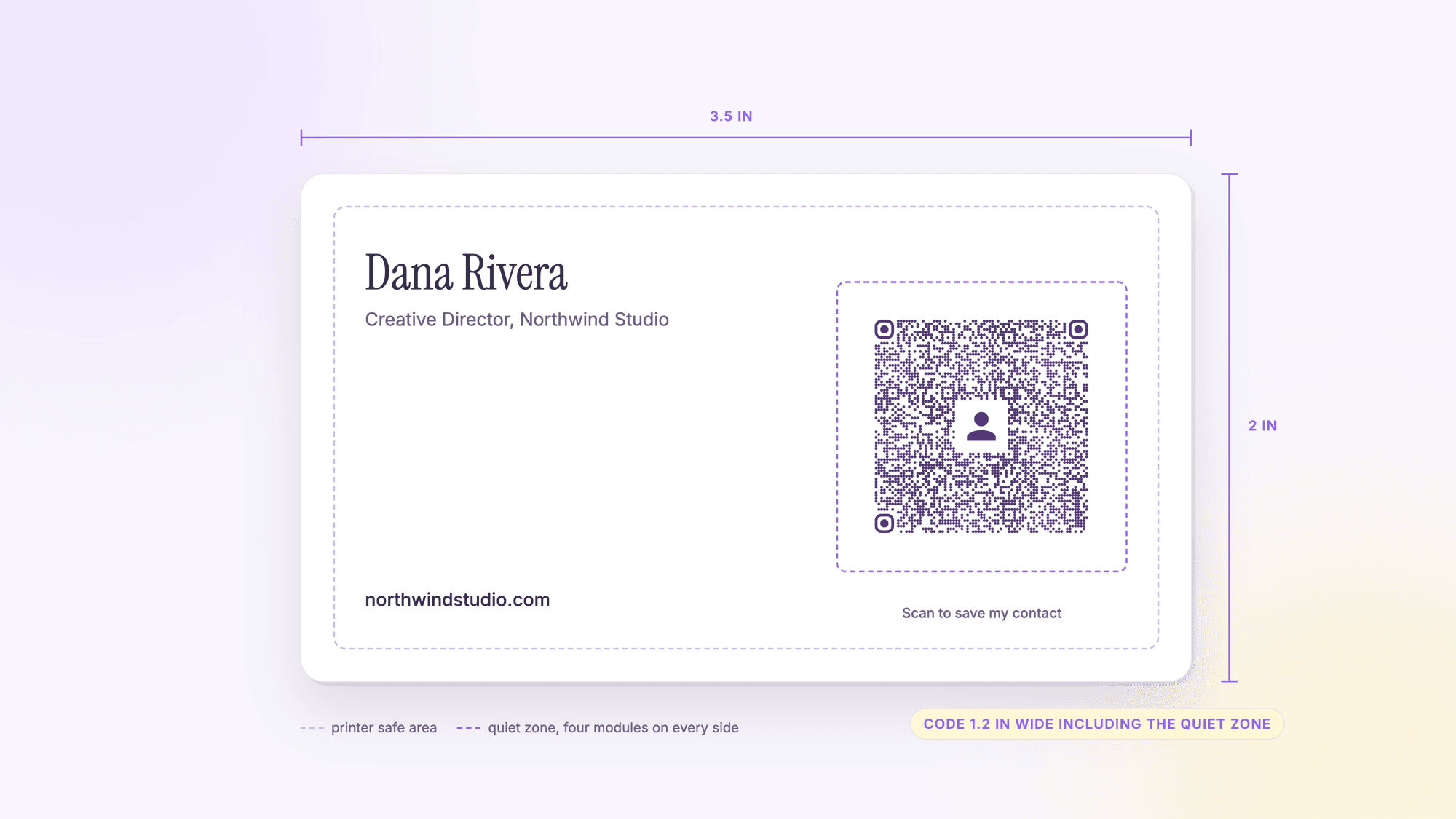
The standard US business card is 3.5 by 2 inches; Vistaprint lists that as its standard shape on 14 point stock. That gives you seven square inches, and a QR code will take one of them. Here is how to think about the size honestly instead of copying a number from a forum.
A QR code is a grid of squares called modules, and Denso Wave, the company that invented the code, publishes guidance on how large each module must print to be read reliably. Its printer table gives a module of 0.33 mm for a 300 dpi printer using four dots per module, and its overall advice is to print the code as large as the space allows. The QR standard also requires a blank quiet zone four modules wide on every side. Put those together with the code sizes a real contact produces (we measured them with the same open-source library our generator uses) and you get a minimum width for each kind of code: How much data a QR code holds at each size is tabled in the character limit guide.
| Code content | Typical version | Grid with quiet zone | Minimum width at 0.33 mm per module |
|---|---|---|---|
| Short link | Version 4 (33 modules) | 41 modules | 13.5 mm, about 0.55 inch |
| Name, phone, email | Version 5 to 10 (37 to 57 modules) | 45 to 65 modules | 15 to 21.5 mm, about 0.6 to 0.85 inch |
| Full card with company, title, website | Version 9 to 15 (53 to 77 modules) | 61 to 85 modules | 20 to 28 mm, about 0.8 to 1.1 inch |
| Full card plus street address | Version 11 to 18 (61 to 89 modules) | 69 to 97 modules | 23 to 32 mm, about 0.9 to 1.25 inch |
The version range in each row runs from the lowest error correction level to the highest, which is why a full vCard can be a 53 module code or a 77 module one. Our generator uses level H, the highest, so a center logo does not cost you scans, which means you should plan for the upper end of each range. The practical rule for a contact code on a card: 0.8 inches is the floor, 1 inch is comfortable, and the back of the card has room for 1.2 inches with a line of text beside it. A link code can go down to about 0.6 inches. These are floors for a clean print on smooth stock; textured paper, dark backgrounds, and glossy finishes all push the safe size up.
Where to put it
The back, most of the time. The front of a card is doing the work of identity: name, logo, title. A code the size of a postage stamp fights with all of that. The back is usually empty or carries a logo, and a one inch code centered on it, or set to one side with a short instruction, looks intentional rather than bolted on.
The front, if the back is unavailable. Some cards are printed one sided to save money, and some backs are taken by a full bleed image. On a front, the lower right corner works, at 0.8 inches minimum, with the quiet zone kept clear of the text block.
Never against the edge. Printers trim cards after printing, and the trim can wander by a small fraction of an inch. Keep the code, including its quiet zone, inside the safe area your printer's template marks, which typically means a good eighth of an inch from every edge. A code that loses part of its quiet zone to the guillotine is a code that scans on some cards in the box and not others.
Add five words. A QR code with no explanation is a puzzle. "Scan to save my contact" or "Scan for my portfolio" next to the code tells the person what will happen and makes it far more likely they bother. Keep it in the same typeface as the rest of the card, small, and outside the quiet zone.
Design rules that keep the code scannable
Dark on light, not the reverse. Phone cameras look for dark modules on a light background. A white code on a black card scans poorly or not at all on many phones. If your card is dark, give the code a white or cream box behind it, quiet zone included.
Contrast, not just color. Navy on white is fine. Your brand purple on white is fine. Gold on cream, light gray on white, and red on black are not, however good they look in the mockup. When in doubt, print the code in the darkest color on the card.
Skip foil, metallic ink, spot UV, and embossing on the code itself. All four create glare or texture that breaks the grid. They can go anywhere else on the card. Matte or uncoated stock scans more reliably than gloss for the same reason.
Keep logos small and the corners untouched. QR codes survive damage because of error correction. Denso Wave describes four levels: L, M, Q, and H, with M the most commonly chosen and Q or H used where codes get dirty or damaged. A center logo consumes part of that budget, which is why our generator switches to level H and keeps the logo around a fifth of the code width. Whatever you do, never let a logo or a rounded corner touch the three large squares in the corners of the code, which are what the camera uses to find it.
Print from the SVG. A PNG screenshot pasted into a design file has soft edges that get softer when the printer scales it. The SVG download is vector, so every module edge is crisp at any size. Every serious print shop accepts it.
Static or dynamic on a printed card
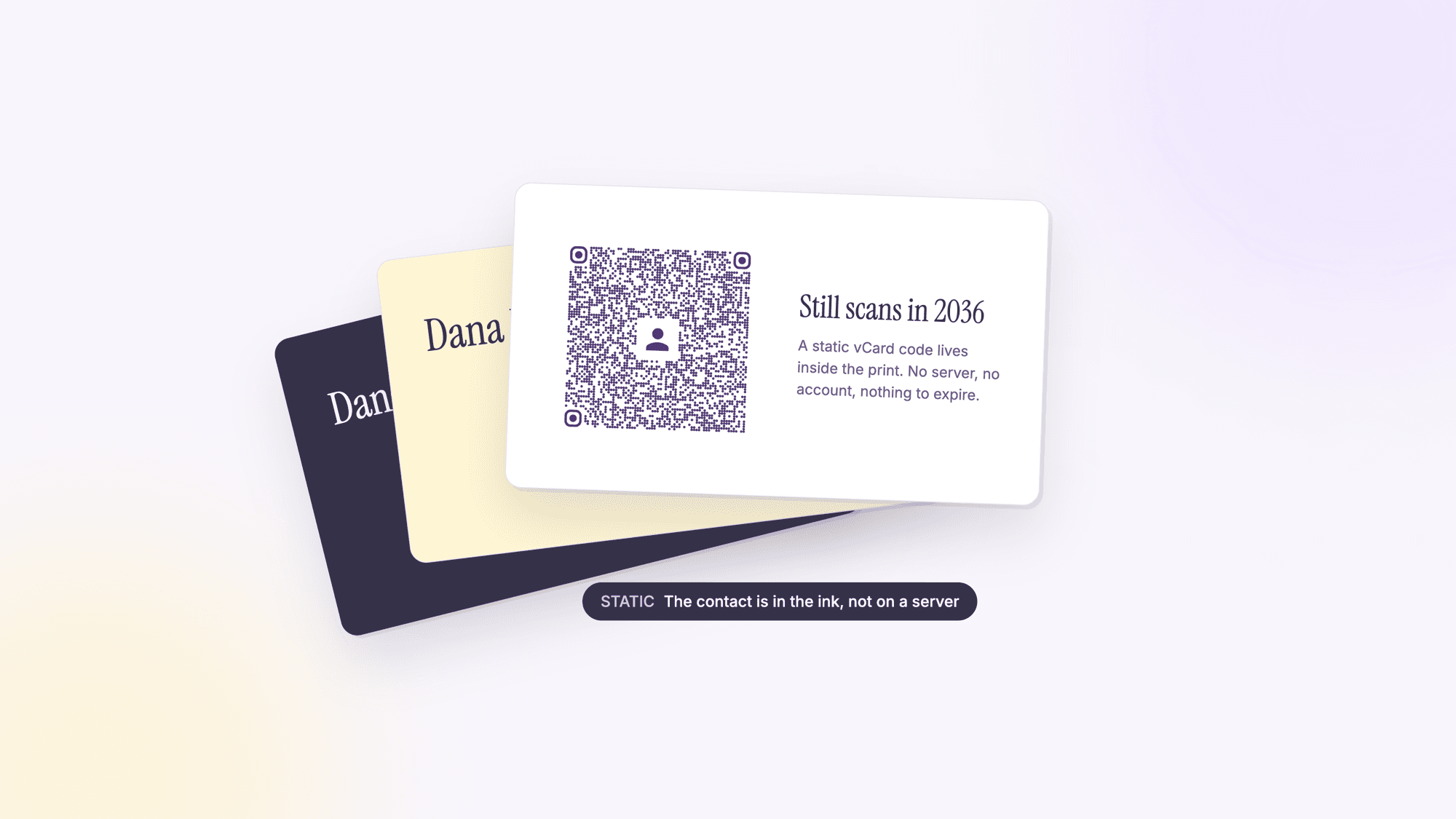
A business card lives longer than almost anything else you print. Cards from a job you left three years ago are still in drawers. That makes the static versus dynamic question sharper here than on a flyer that gets thrown away in a week. Do printed QR codes expire explains why a static vCard code in that drawer still works.
A static vCard code contains your details and will work in that drawer for as long as the ink lasts, with no account and no server involved. That is exactly right for a card, because your name and mobile number are the most stable facts about you. A dynamic code contains a short link that redirects to a destination you can change, which is what you want if the code opens a portfolio, a booking page, or a company page that may move. The cost of dynamic is that the code goes dead if the service behind it does, and most services charge for it after a trial. QRCodePrime does not: every free account includes 10 dynamic QR codes free for life, no ads, no credit card. Our comparison of static and dynamic QR codes lays out the tradeoffs in detail.
A reasonable compromise for people who want both: a static vCard code on the card, with the website field pointing at a page on your own domain that you control. The contact never expires, and the link inside it goes wherever you point that page.
Step by step: from generator to print-ready card
1. Make the code. For a contact, use the vCard QR code generator and fill in name, phone with the +1 country code, email, company, title, and website. For a link, use the URL QR code generator. Both are free and need no account for a static code.
2. Set the color to the darkest ink on your card and, if you add a logo, keep it small. Download the SVG.
3. Place it in your card template at the size from the table above, with the quiet zone inside the safe area. Most printers provide templates for Illustrator, Canva, and Word with the bleed and safe lines drawn in.
4. Add the instruction line beside or below the code, outside the quiet zone.
5. Export a proof and print it at home on plain paper at 100 percent scale. Cut it to size. Scan it with an iPhone using the Camera app and with an Android phone, in ordinary room light and again under a warm lamp. Apple's support page on scanning QR codes and Google's page on scanning with the Camera from Google app both describe the default camera flow, and that default flow is what most of the people you hand the card to will use. The full QR code test routine adds the content check and the two-phone scan.
6. Only then send it to print. If the shop offers a printed proof, take it and scan that too, because the real stock and the real ink are what matter.
Paper cards, digital cards, and NameDrop
Two alternatives get pitched as replacements for the paper card. Both are useful. Neither replaces a QR code on a card, and here is why.
NameDrop, which Apple introduced in iOS 17, lets two iPhones exchange contact details by holding them close together. Apple's iPhone User Guide describes the flow. It is excellent when both people have a recent iPhone and are standing next to each other. It does nothing for the Android user across the table, the person who reads your card a week later, or anyone who receives the card second hand.
Digital business card apps give you a link or an NFC tap that opens a profile page. They are convenient and they can track who tapped, but the profile lives on the app company's servers, the good features usually sit behind a subscription, and the person on the other end lands on a web page rather than in their contacts app. A vCard QR code on a paper card works on every phone, needs no app on either side, costs nothing to keep alive, and still leaves the person holding something physical with your name on it. Many people run both: the app link for online, the card with a code for in person.
Mistakes that waste a print run
Printing the code under 0.6 inches because it looked fine on screen. Screens are backlit and sharp; card stock is neither. Size is the first cause of a failed scan, as the troubleshooting guide shows.
A link that changes. A static code pointing at a personal page on an employer's site is a dead code the day you change jobs. Point static links at a domain you own, or use a dynamic code.
No instruction. People are far more likely to scan a code that says what it does.
Two or three codes on one card. Each extra code makes it less likely any of them gets scanned. Pick one.
A code cropped by the trim because it was placed against the edge. Keep it inside the safe area.
Inverted or low contrast colors chosen for the mockup rather than the camera.
Skipping the paper test. Every problem above is caught by printing one proof at home and scanning it with two phones. It takes five minutes. A box of 500 cards with a code that does not scan takes considerably longer to explain.
Who gets the most out of a QR code on a card
Real estate agents, because a buyer at an open house saves the agent's contact on the spot instead of losing the card in a folder of listings; our guide to QR codes for real estate agents and the real estate QR code page go into that workflow. Contractors and trades, because the card on the fridge becomes a number that dials. Consultants and freelancers, because the code can carry the portfolio link that actually closes the work. Exhibitors and speakers at conferences, where a card with a code beats a fishbowl of cards, as covered in QR codes for events. And anyone whose last name gets misspelled, which is the quiet reason a saved contact beats a typed one.
Sources
- Vistaprint: Standard business cards (3.5 by 2 inch standard shape)
- Denso Wave: Point for setting the module size
- Denso Wave: Error correction feature
- Denso Wave: Information capacity and versions of the QR Code
- Apple iPhone User Guide: Use NameDrop to share contact info
- Apple Support: Scan a QR code with your iPhone or iPad
- Google Help: Scan QR codes on Camera from Google
Common questions about QR codes on business cards
How big should a QR code be on a business card?▾
For a contact (vCard) code, at least 0.8 inches wide including its blank margin, with 1 inch being comfortable. A short link code can go down to about 0.6 inches. Those floors come from the module size guidance published by Denso Wave and the number of modules a real contact card produces; textured or dark stock pushes them up.
Should the QR code go on the front or the back of the card?▾
The back, in most cases. It has the space for a one inch code and a short instruction without crowding your name and logo. Use the front only when the back is unavailable, placing the code in a lower corner inside the printer's safe area.
What should the QR code on a business card link to?▾
For most people, nothing: it should save your contact directly with a vCard code, which works offline and never expires. Use a link code when the follow-up action matters more than the contact, such as a portfolio, a booking page, or a menu, and put that link in the vCard's website field if you want both.
Can I put a QR code on a black or dark business card?▾
Yes, but not as a white code on the dark background. Print a white or cream box on the card and put a dark code inside it, with the blank margin included in the box. Phone cameras are built to find dark modules on a light background.
Will a QR code on a business card expire?▾
A static code, including a static vCard code, never expires because the data is inside the pattern. A dynamic code depends on the service that hosts its redirect and stops working if that service ends (on QRCodePrime, dynamic codes are free for life with a free account, so there is no plan to lapse). For a card that may sit in a drawer for years, static is the safer default.
Can I add my logo to the QR code on my card?▾
Yes, if it stays small and the code uses a high error correction level. QRCodePrime sets level H and keeps the logo around a fifth of the code width for this reason. Never let the logo cover the three large corner squares.
Is a QR code better than NameDrop or a digital business card app?▾
They solve different moments. NameDrop works only between two recent iPhones held together. Digital card apps depend on their servers and usually a subscription. A vCard QR code on a paper card works on any phone with no app, costs nothing to keep alive, and still works when the card is read a week later.
What file format should I give the printer for the QR code?▾
SVG. It is a vector file, so every square in the code stays sharp at any size, and every print shop accepts it inside a PDF or design file. A PNG can work if it is exported large, but a small PNG scaled up prints with soft edges that misread.
Contact details in, print-ready SVG out. Free, no signup, no watermark.
Make the QR code for your cardPublished by
QRCodePrime Team
Guides on making, printing and scanning QR codes
Published by the team behind the free QRCodePrime generator and scanner. The example codes in our illustrations are real codes made with the generator, numbers are either computed by us or quoted from a source we name, and the sources are linked at the end of each article. Found a mistake? Email hello@qrcodeprime.com and we will fix it.