
How to Make a vCard QR Code (Free, iPhone and Android)
Last updated Sep 11, 2026
On this page
- The short version
- What a vCard QR code actually is
- Step by step: how to make a vCard QR code
- What each field becomes on the other person's phone
- How much a vCard QR code can hold
- Static or dynamic for a contact code?
- Test it on both kinds of phone before you print
- Where a vCard QR code earns its keep
- Common mistakes with vCard QR codes
- Already have a saved contact file?
- Sources
- Common questions about making a vCard QR code
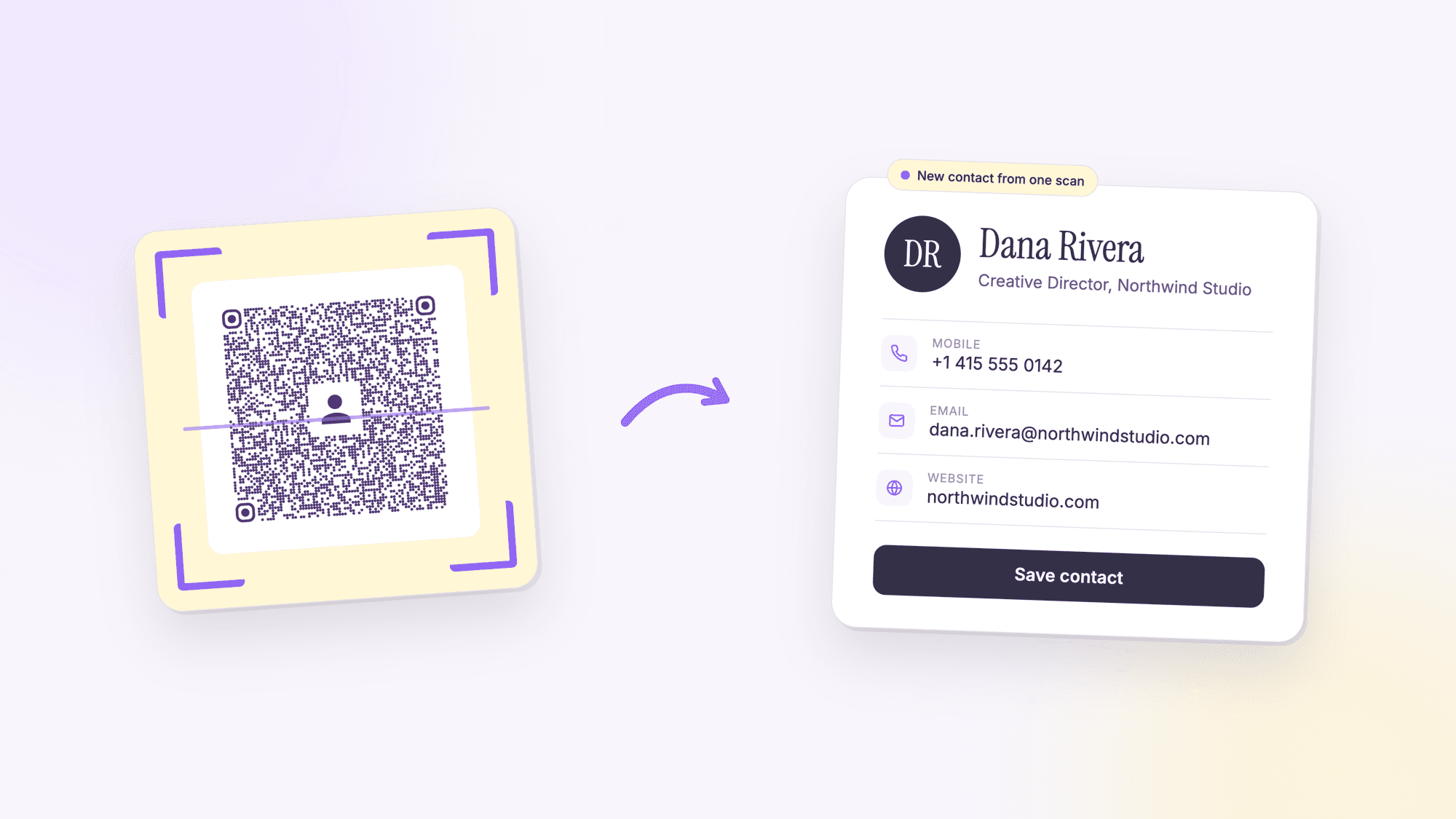
A vCard QR code is a QR code that holds a contact card. Someone points their phone camera at it, taps the prompt, and your name, number, email, company, and website land in their contacts app without anyone typing a thing. You can make one in about a minute, it costs nothing, and it never expires, because the contact details live inside the code itself rather than on a server somewhere.
This guide walks through the whole job: what to put in each field, how much a code can hold before it turns into an unscannable blob, how to test it on an iPhone and an Android phone, and the handful of mistakes that ruin a print run. If you already have a saved contact file and want to turn that into a code, jump to our companion piece on converting a VCF file to a QR code. If your end goal is a business card, read this first and then the guide to QR codes on business cards.
The short version
Open the free vCard QR code generator, choose the Contact type, type your name, phone, email, company, title, and website, download the SVG, and scan it with your own phone before you send anything to a printer. That is genuinely the whole process. Everything below explains the decisions inside those steps, because the details are what separate a code that saves a contact in one tap from one that shows a wall of raw text or refuses to scan at all.
What a vCard QR code actually is
Two standards are doing the work here. The first is vCard, a plain text format for contact information that has been around since the 1990s and is defined today in the IETF specification RFC 6350 (vCard version 4.0, published in 2011), with the older version 3.0 defined in RFC 2426. A vCard is just lines of text: a name line, a phone line, an email line, wrapped between BEGIN:VCARD and END:VCARD. Every phone contacts app can read it. The .vcf file you get when someone shares a contact from an iPhone is a vCard.
The second standard is the QR code itself, which is a way of storing text inside a grid of black and white squares that a camera can read. Put the vCard text inside a QR code and you have a vCard QR code. The phone camera decodes the squares back into text, notices the BEGIN:VCARD line, and offers to create a contact instead of showing the text on screen.
That has two consequences worth understanding before you make one. First, the code is static: the contact details are baked into the pattern, so it works with no internet connection, no account, and no company keeping a server alive. It will still scan in ten years. Second, whatever you print is permanent. If you change your phone number, the printed code still carries the old one. That tradeoff is the reason the static or dynamic decision below matters more for contact codes than for almost any other type.
Step by step: how to make a vCard QR code
1. Open the generator and choose Contact. On the QRCodePrime homepage the QR types run across the top of the tool. The Contact type (labeled vCard) opens a form with the standard contact fields. No account is needed for a static contact code.
2. Fill in the fields you want people to have. A first or last name is required, because the phone uses it to build the contact. Phone, email, company, job title, address, and website are optional. Fill in what you would put on a business card and leave the rest empty. Every character you add makes the code denser, so restraint is a feature here, not laziness.
3. Check the preview scans as a contact. The code updates live as you type. Point your own phone at the screen. An iPhone shows a Contacts banner at the top of the camera view; an Android phone running the Camera from Google app or Google Lens shows an add-contact prompt. If you see raw text instead, something in the data is malformed, usually a stray line break pasted into a field.
4. Set the colors and add a logo if you want one. Keep the code dark on a light background. Our generator adds a small contact icon in the center by default and raises the error correction level to H, the highest of the four levels in the QR standard, so the icon does not cost you scans. You can swap in your own logo. Keep it small.
5. Download the right format. Download SVG for anything that will be printed, because a vector file stays sharp at any size. Download PNG for email signatures, slides, and websites. Save both if you are not sure yet.
6. Test the downloaded file, not just the preview. Open the file at the size you plan to use, scan it with an iPhone and with an Android phone, and check that the saved contact has the name split correctly, the number dials, and the email opens a message. Then print.
What each field becomes on the other person's phone
It helps to know what the phone does with each line, because that tells you how to fill the form. Here is the contact card our generator writes for a sample entry, exactly as it goes into the code:
BEGIN:VCARD
VERSION:3.0
N:Rivera;Dana
FN:Dana Rivera
TEL:+1 415 555 0142
EMAIL:dana.rivera@northwindstudio.com
ORG:Northwind Studio
TITLE:Creative Director
URL:https://northwindstudio.com
END:VCARD
| Form field | vCard line | What the phone does with it | Tip |
|---|---|---|---|
| First and last name | N and FN | Creates the contact and sorts it by last name | Use the name people know you by, not your legal name |
| Phone | TEL | Becomes a tappable number that dials or texts | Include the +1 country code so it dials from anywhere |
| Opens a new message when tapped | Use the address you actually read | ||
| Company | ORG | Fills the company field, which contacts apps search | Spell it the way it appears on your website |
| Job title | TITLE | Shows under the name in the contact card | Short beats impressive |
| Address | ADR | Becomes a tappable address that opens in maps | Skip it unless people visit you; it is the longest field |
| Website | URL | Opens in the browser when tapped | Include https:// and consider using your LinkedIn profile here |
The phone field deserves a second look. A number typed as 415 555 0142 saves fine, but if the person who scanned it travels or has a phone set to another region, dialing can fail. Typing +1 415 555 0142 removes that problem and costs you three characters. The same logic applies to the website: a URL without https:// may save as plain text on some phones instead of a link.
How much a vCard QR code can hold
This is the part most guides skip, and it is the reason so many contact codes on business cards look like a dense gray smudge. A QR code grows in steps called versions. According to Denso Wave, the company that invented the QR code, version 1 is a 21 by 21 grid of modules and version 40 is 177 by 177, with each version adding four modules per side. More text means a higher version, which means more, smaller squares packed into the same printed area. Past a certain point a phone camera at arm's length cannot resolve them.
To put real numbers on it, we encoded three sample contact cards with the same open-source QR library our generator uses. A minimal card with a name, one phone number, and one email is about 105 bytes and fits in a version 5 code (37 by 37 modules) at the lowest error correction level, or version 10 (57 by 57) at the highest. Add a company, title, and website and you are near 200 bytes, which lands at version 9 to 15 depending on error correction. Add a full street address and a LinkedIn URL and you pass 300 bytes and reach version 11 to 18, an 89 by 89 grid at level H. That last code still scans, but it needs to be printed larger and it is far less forgiving of glare and folds.
The practical rule: keep a contact code under roughly 300 bytes, which for most people means name, phone, email, company, title, and one website. Leave the address out unless customers physically visit you. Never embed a photo; a photo turns a few hundred bytes into tens of thousands, and the QR standard tops out at 2,953 bytes of binary data in the largest version. If you want people to have more than that, use a dynamic code that links to a contact page instead. The characters-to-squares table in the character limit guide shows every step.
Static or dynamic for a contact code?
A static vCard QR code stores the contact inside the pattern. It is free, it works offline, nothing about the scan is logged anywhere, and it cannot break because a company shut down. The cost is that it is frozen at the moment you download it. A dynamic code stores a short link instead, and that link points to a contact page or a hosted .vcf file on a server. You can change the destination after printing, and you can count scans. The cost is that it depends on that server staying up. Elsewhere that usually means a paid plan; on QRCodePrime, every free account includes 10 dynamic QR codes free for life, with no ads and no credit card required.
For a contact code the honest recommendation is static in most cases. Your name does not change, your mobile number rarely does, and a static code handed out on a card will still work at the bottom of a drawer in 2036. Go dynamic if your details genuinely churn (agency staff who rotate clients, a sales team with shared cards, a role that changes title every year) or if you want to know how many people scanned the card after a trade show. Our guide to static versus dynamic QR codes goes deeper on the tradeoff. If the details may change, repointing a printed code from the dashboard is what a dynamic code allows, and the editing guide explains what it does not.
Test it on both kinds of phone before you print
Every contact code should be scanned with at least one iPhone and one Android phone before it goes anywhere near a printer, because the two platforms read vCards slightly differently and you only get to find out after the cards arrive.
On an iPhone, open the Camera app and hold the phone so the code fills a good part of the frame. Apple's support page on scanning QR codes describes the flow: the camera recognizes the code and shows a banner you tap to open the content. For a vCard, that banner is a Contacts prompt, and tapping it opens a new contact card with your details filled in, ready to save. Check the name landed in the right fields, tap the number to make sure it dials, and tap the email to see it open a message.
On Android, the Camera from Google app has a QR mode, and most other camera apps scan in the default photo mode; Google's help page notes you cannot scan in portrait or video modes, so switch back to the normal camera if a scan is not registering. The prompt offers to add the contact. Android contacts apps do not all map the company and title fields the same way, so open the saved contact and check that everything landed where you expect.
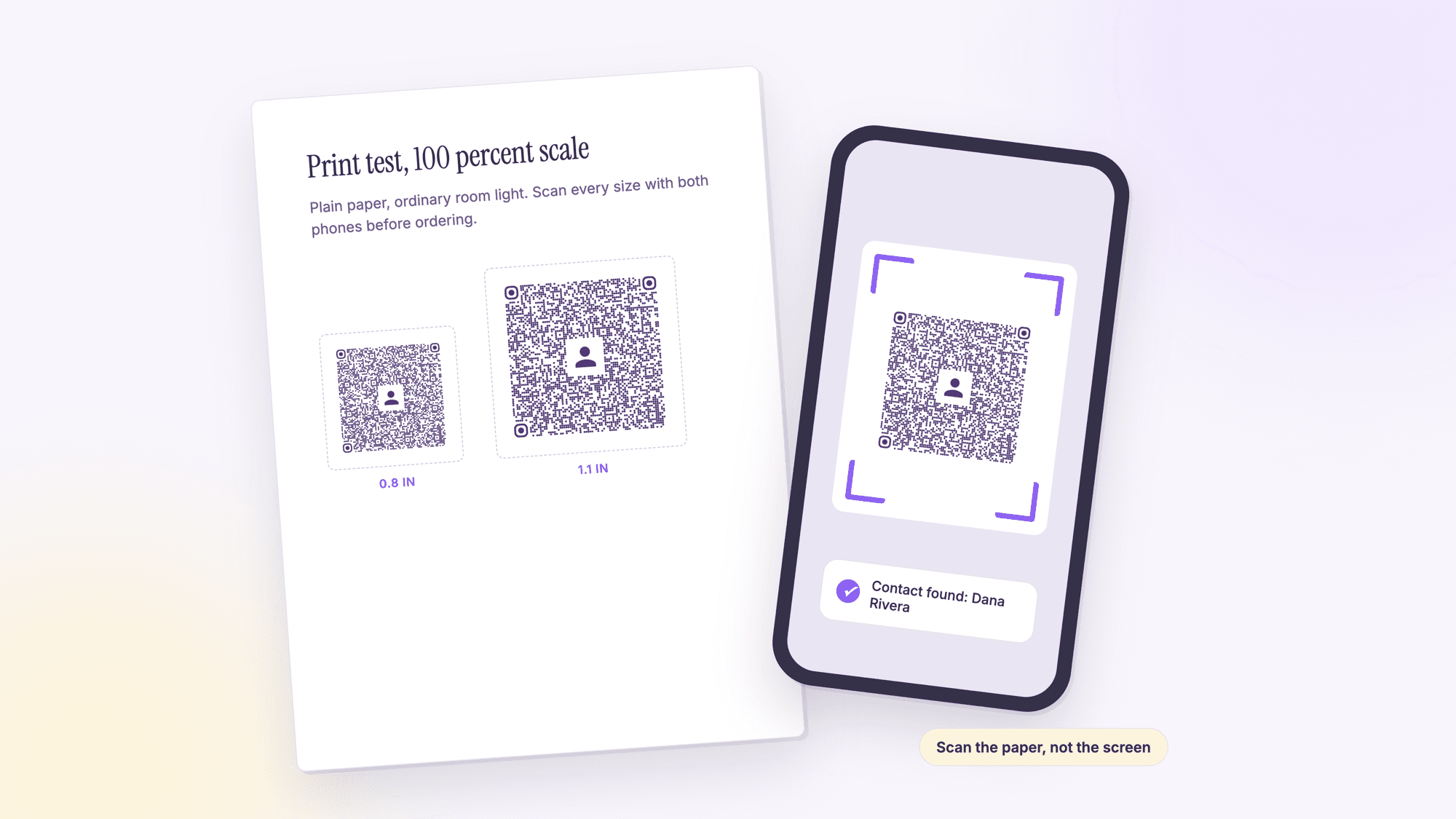
Test at the real size, on paper. A code that scans from a bright monitor can fail on a matte card at 0.7 inches wide under a restaurant's dim light. Print one on plain paper at 100 percent scale and scan that. The full routine, including the widths each payload needs, is in our guide to testing a QR code before printing.
Where a vCard QR code earns its keep
The obvious home is the back of a business card, and our full guide to QR codes on business cards covers sizing and placement in detail. The less obvious homes are often better, because they reach people who never got a card.
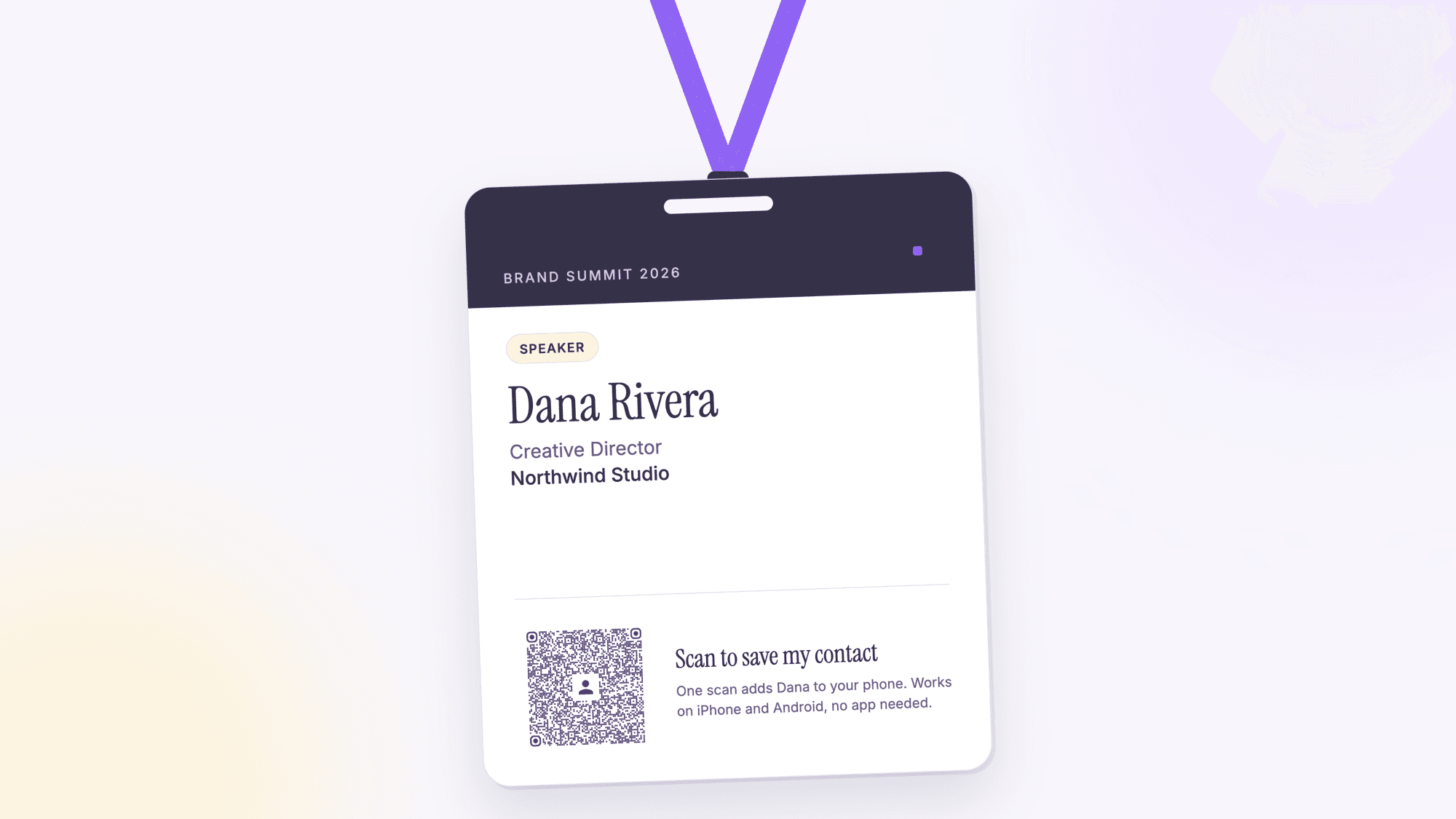
Put one in your email signature as a small PNG, so a recipient reading on a laptop can save you to their phone in one scan. Put one on the closing slide of every presentation, which is the single moment when a room full of people is looking at a screen and wants to follow up. Add one to your conference badge and your name tent at networking events, a tactic we cover in QR codes for events. Real estate agents print them on yard sign riders and open house flyers, which is why they appear throughout our real estate QR code page. Contractors and service businesses put one on the truck door and on the invoice. Anywhere a person might think "I should save this number" is a place a contact code removes the typing that stops them.
Common mistakes with vCard QR codes
A typo you cannot fix. The code is permanent. Read every field aloud before downloading, then scan it and read the saved contact again. One wrong digit in a phone number on 500 printed cards is the classic expensive mistake in this whole category.
Too much data. Filling every field, adding a second phone, a fax number, a full address, and a long URL produces a code so dense it fails on cheap card stock. Trim it back to what you would say out loud when you introduce yourself.
Low contrast or inverted colors. Light gray on white, gold foil, or a white code on a dark card all cut scan rates. Dark modules on a light background is the pattern every phone camera is tuned for.
No quiet zone. The blank margin around the code is part of the code. Cropping it tight against a logo or a card edge confuses the scanner. Leave a margin at least as wide as four of the small squares on every side.
Printed too small. A contact code holds more than a link, so it needs more room. Under about 0.8 inches wide, a typical vCard code gets unreliable, and people give a QR code exactly one attempt. Why small codes fail to scan is the first entry in the troubleshooting guide.
A photo in the contact. Some tools let you attach a picture. It bloats the data past what a code can hold at a printable size, and most phones ignore it anyway.
A low resolution PNG sent to print. A 300 pixel PNG scaled up to a card looks fine on screen and prints with soft, blurry edges that misread. Send the SVG.
Already have a saved contact file?
If your details already exist as a .vcf file, exported from your iPhone, Outlook, or Google Contacts, you do not have to retype them. Our guide to turning a VCF file into a QR code covers the three ways to do it, including how to strip out the photo and the extra lines that make a file too large to encode.
Sources
- IETF RFC 6350: vCard Format Specification (2011)
- IETF RFC 2426: vCard MIME Directory Profile, version 3.0 (1998)
- Denso Wave: Information capacity and versions of the QR Code
- Denso Wave: Error correction feature
- Apple Support: Scan a QR code with your iPhone or iPad
- Google Help: Scan QR codes on Camera from Google
Common questions about making a vCard QR code
Is a vCard QR code free to make?▾
Yes. A static vCard QR code stores your contact details inside the code itself, so there is no server to pay for and no account to keep. You can make one on QRCodePrime without signing up, download it as SVG or PNG, and it will keep working for as long as the printed code exists.
Does a vCard QR code expire?▾
A static one does not. The contact information is encoded in the black and white pattern, so it does not depend on any website or subscription. Only dynamic codes, which point to a link on a provider's server, can stop working if that service ends or the plan lapses.
Can I edit a vCard QR code after I print it?▾
Not if it is static. The details are fixed the moment you download it, which is why you should scan and check every field before printing. If your details change often, use a dynamic code that links to a contact page you can update, and accept that it depends on a hosted service.
Does a vCard QR code work on both iPhone and Android?▾
Yes. The iPhone Camera app recognizes a vCard and shows a Contacts prompt that opens a new contact with the fields filled in. On Android, the Camera from Google app and Google Lens offer to add the contact. Test on one of each before printing, since Android contacts apps do not all map the company and title fields the same way.
How much information can I put in a vCard QR code?▾
Technically up to 2,953 bytes, the limit of the largest QR code version. Practically, keep it under about 300 bytes, which covers a name, phone, email, company, title, and one website. Beyond that the code becomes so dense it needs to be printed large to scan reliably, and photos should never be included.
Can I add my logo to a vCard QR code?▾
Yes, as long as the logo stays small and the error correction level is set high. QR codes can lose part of their pattern and still scan, and level H tolerates the most damage. QRCodePrime uses level H automatically when a center logo is present, so a modest logo does not affect scanning.
What is the difference between a vCard QR code and a MeCard QR code?▾
MeCard is a shorter contact format that originated with NTT Docomo in Japan. It produces a smaller code but supports fewer fields, and not every scanner app handles it. vCard is the format every contacts app already speaks, so it is the safer choice for anything you will print.
Is it safe to put my details in a QR code?▾
Anyone who scans the code gets everything in it, exactly like anyone who picks up your business card. Include only what you would print on a card. Leave out your home address and personal number if the code will be posted somewhere public, and remember a static code cannot be revoked once it is out in the world.
Name, phone, email, company, website. One scan saves it all. Free, no signup, SVG and PNG download.
Make your vCard QR codePublished by
QRCodePrime Team
Guides on making, printing and scanning QR codes
Published by the team behind the free QRCodePrime generator and scanner. The example codes in our illustrations are real codes made with the generator, numbers are either computed by us or quoted from a source we name, and the sources are linked at the end of each article. Found a mistake? Email hello@qrcodeprime.com and we will fix it.